Mining Miner
with Skollheim
A 2D incremental mining game, out on Steam.
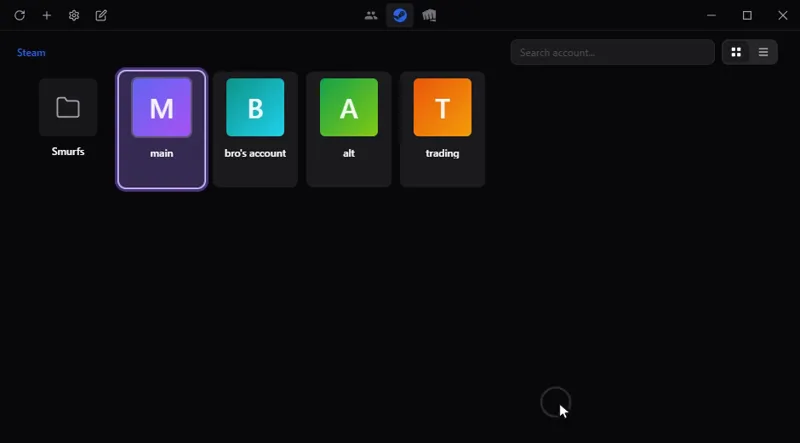
Switch between your game accounts in one click, with no password stored: Steam, Riot, Battle.net, Epic and more. On Windows, macOS and Linux.
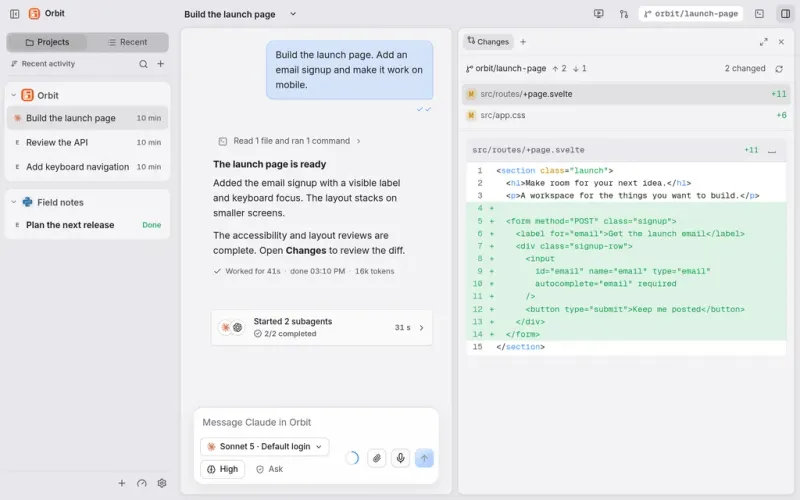
All your work and your AI agents in one place: Claude Code, Codex and others in a single chat window, on your computer and from your phone.
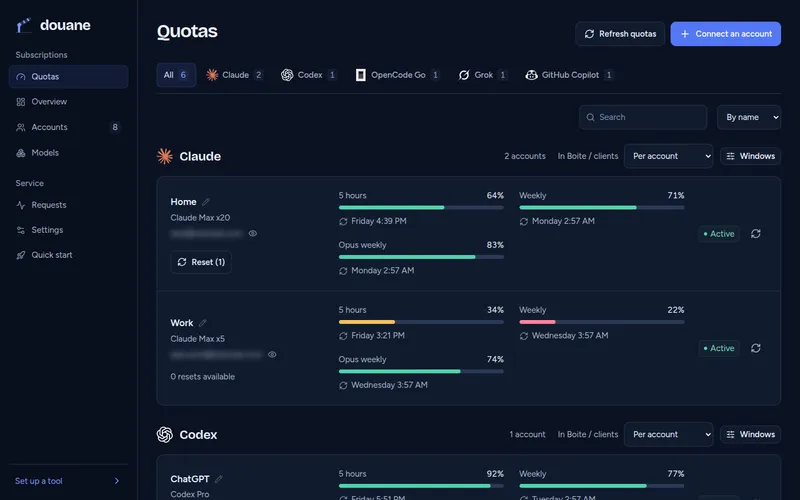
For developers: use all your AI subscriptions in any coding tool through one server you host, which watches each account's quota.
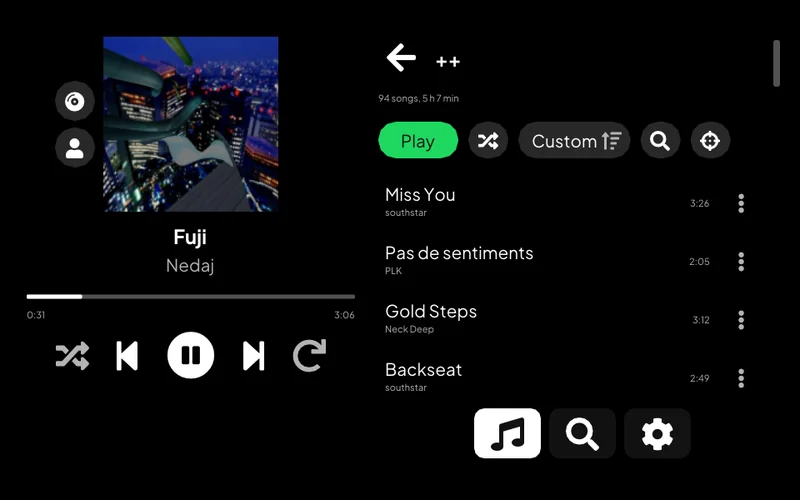
Listen to Spotify on a PS Vita: your library, search, artist pages and Spotify Connect.
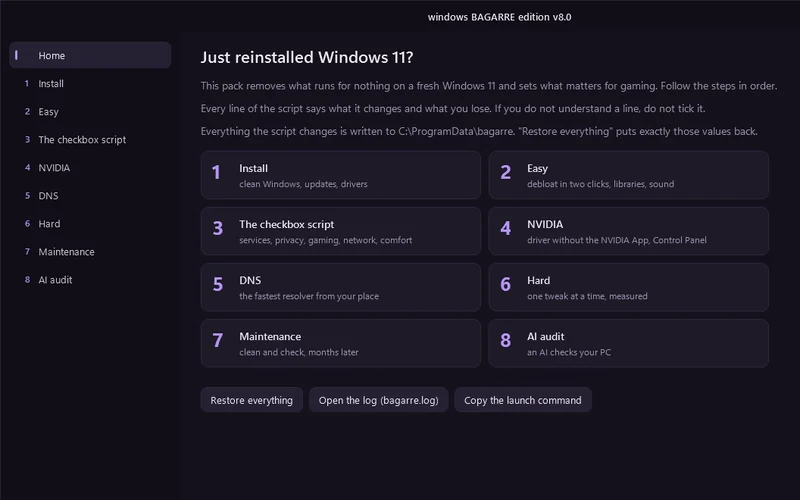
One window that cleans up a fresh Windows 11 install and tunes it for gaming.
For developers: pick which AI coding assistant to launch, with which service and model, from one terminal menu, or let a roulette choose.
Lets an AI assistant work on a remote computer: run commands, move files, take screenshots.
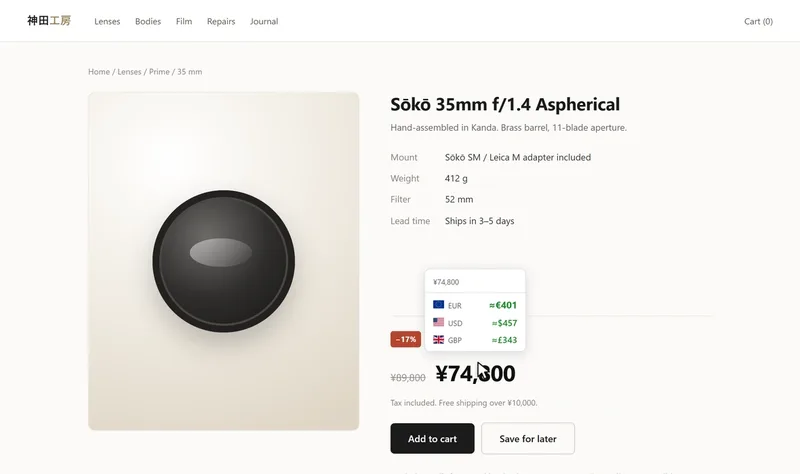
See a price on a web page in another currency or in crypto: on hover, on a selection or right in the page. Chrome and Firefox.
Control a Meian home alarm from an Android phone, by SMS.
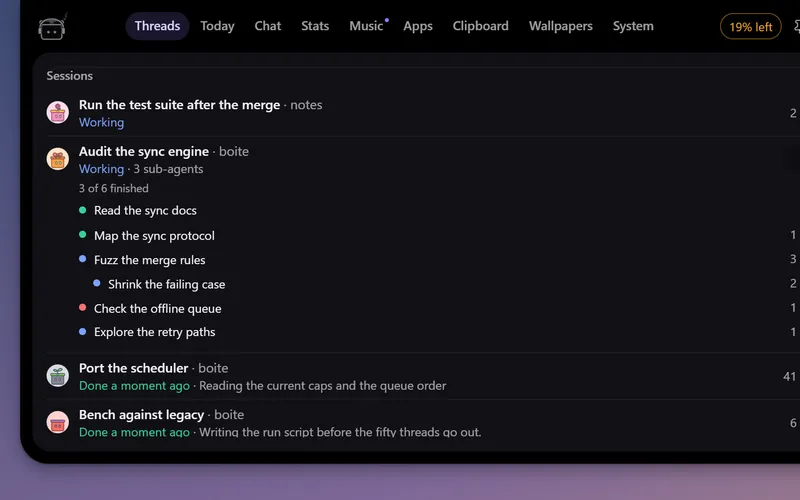
A little robot at the top of your screen that watches your Boite agents, tells you when one needs you and lets you answer without opening Boite.
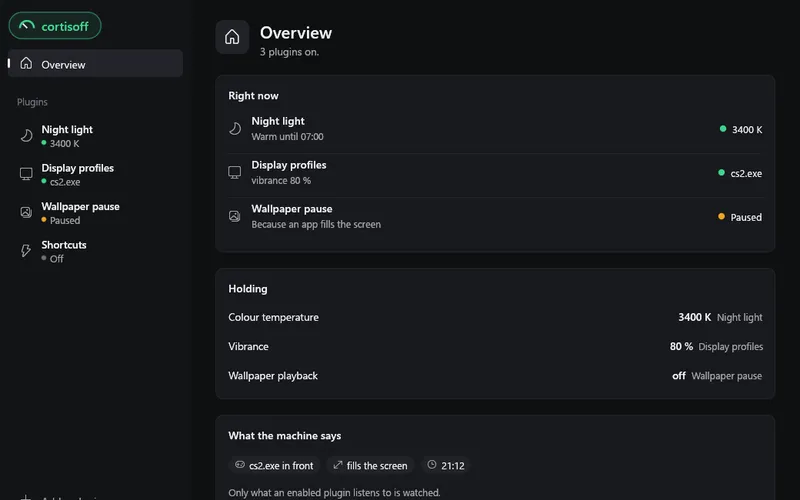
Small plugins for your desktop: a night light in the evening, a refresh rate and vibrance for each game, shortcuts. On Windows, Linux and macOS.
desktop app
Small plugins for your desktop: a night light in the evening, a refresh rate and vibrance for each game, shortcuts. On Windows, Linux and macOS.
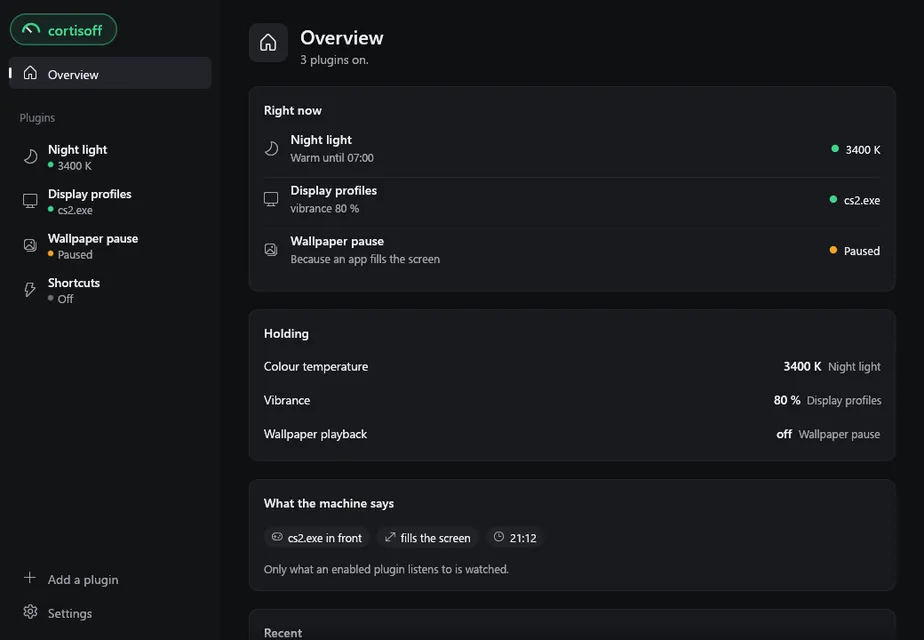
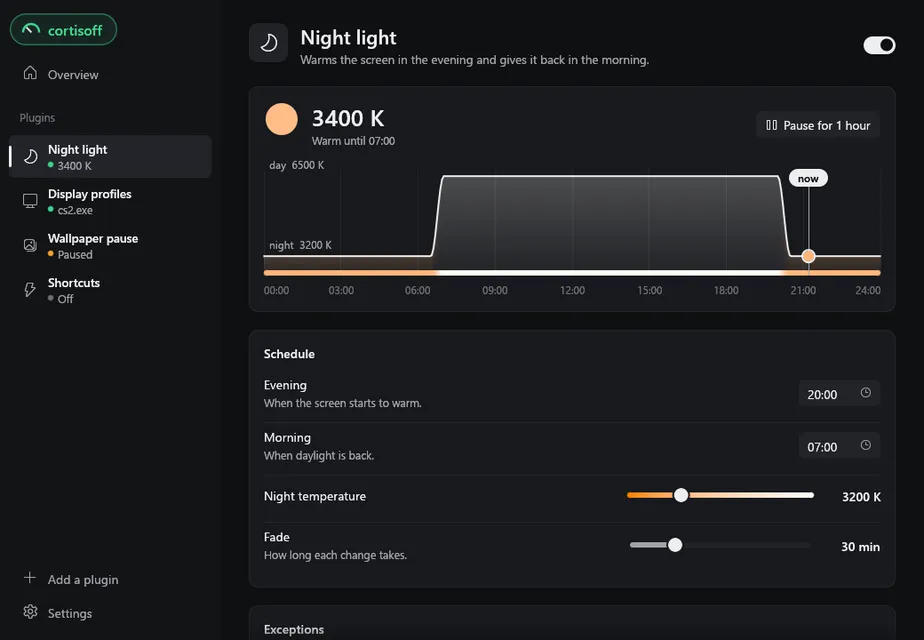
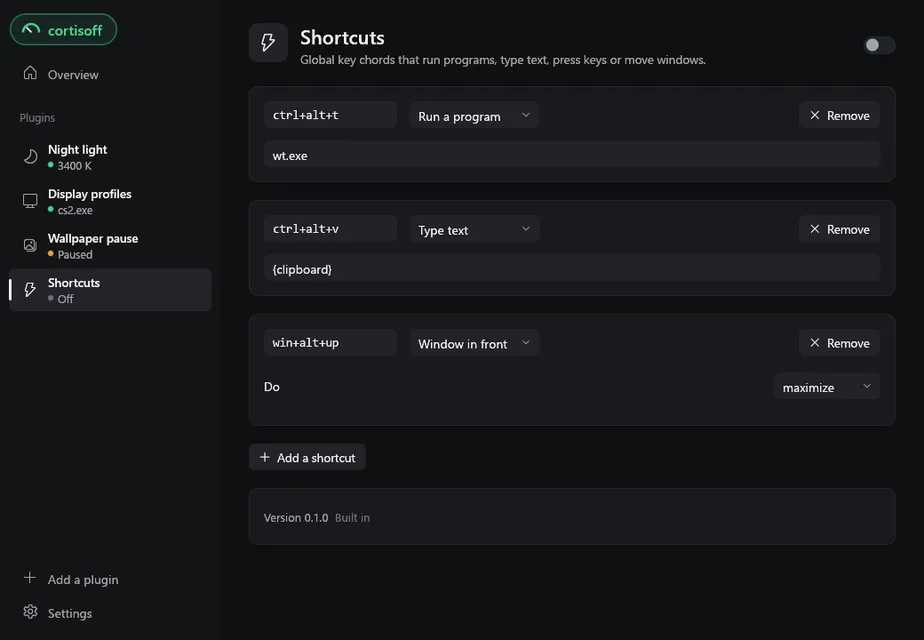
A small program that runs plugins on your desktop: a night light that warms the screen in the evening, a refresh rate and a vibrance for each game, an animated wallpaper that stops while nobody sees it, global shortcuts. Each plugin is a short Lua script you can read, change or write yourself.
| Plugin | What it does |
|---|---|
| Night light | Warms the screen from the evening to the morning over a fade you choose, from instant to five minutes, and steps aside while a game or a film is fullscreen or a listed app is in front. |
| Display profiles | Gives each app its own refresh rate and vibrance while it is in front, and puts yours back when it leaves. Vibrance needs an NVIDIA card. |
| Wallpaper Engine pause | Pauses Wallpaper Engine (or Lively) while the session is locked or nobody is at the machine. Apps in front, fullscreen, sound and battery stay in its own settings. Windows only. |
| Shortcuts | Global key chords that start a program, type text, press other keys or move the window in front. |
Every plugin is off until you switch it on, and only what an enabled plugin asks about is watched.
Plugins never set a screen directly. They ask for a value (a colour temperature, a refresh rate) with a priority, cortisoff applies the strongest request, and when nothing asks any more it puts back exactly what was there before. Values that would survive a crash, such as a refresh rate, are written down before the first change, so even a power cut leaves nothing behind: the next start restores them.
Windows 10 and 11:
cortisoff-windows-x86_64.exe from the latest release.%LOCALAPPDATA%\Programs\Cortisoff, adds a Start Menu entry and an entry in Settings > Apps, and starts with your session.Closing the window leaves cortisoff running in the background; the window only shows and edits what it does. To remove it, use Uninstall in the settings page, or Settings > Apps. Your plugins and their settings stay, in case you come back.
A plugin that misbehaves from the moment you log in: hold Shift while your session opens, until the desktop shows. cortisoff does not start. Open it from the Start Menu and it lists every plugin with none running and the logo off, so you can switch the culprit off first, then click the logo to start the rest. Holding Shift while you open the window does the same.
Download cortisoff-linux-x86_64 from the same release page, make it executable with chmod +x cortisoff-linux-x86_64, and run it. It installs itself into ~/.local/bin, adds an entry to the applications menu and starts with your session. cortisoff --uninstall removes it.
It works on X11, and on GNOME under Wayland. There the night light goes through GNOME's own Night Light, and shortcuts through the desktop portal: GNOME asks once whether to allow them, and a shortcut there runs commands, while typing, sending keys and window actions need X11. Wayland tells no app which window is in front, so display profiles cannot follow apps there. Other Wayland desktops, KDE included, are not supported yet. cortisoff-cli doctor lists what your session supports.
macOS 11 or later:
cortisoff-darwin-aarch64.zip (Apple Silicon) or cortisoff-darwin-x86_64.zip (Intel) from the same release page, and open it: it unpacks Cortisoff.app.Cortisoff.app. The app is not notarised, so macOS says it cannot check it: click Done, then in System Settings > Privacy & Security click Open Anyway next to Cortisoff.~/Applications/Cortisoff.app and starts with your session. The downloaded copy can go.Plugins that read window titles or send keys ask for Accessibility in System Settings > Privacy & Security. Every release is signed with the same certificate and updates replace the whole app, so macOS should keep that permission across updates. cortisoff-cli is inside the app, in Cortisoff.app/Contents/MacOS, and updates with it.
The macOS build is built and tested on every change but has not run on a real Mac yet, so please report what you find.
An installed copy checks GitHub for a new release a couple of minutes after it starts and every six hours after that. Each release is signed, and a download whose signature does not match the key built into the app is thrown away. A verified update installs once no plugin is changing your screen, so a night tint never flickers in the middle of one. Switch "Install updates automatically" off in the settings page to install them yourself from there.
cortisoff collects nothing and sends nothing about you. It goes online for the update check and when you add a plugin from a link. A plugin you install can make its own web requests, so read it before you switch it on.
Add one from the window: "Add a plugin" takes a GitHub repository (owner/repo or its address) or a link to a zip.
A plugin is a folder with a plugin.toml and an init.lua. Its daemon half reacts to what happens on the machine and asks for values; its window half draws its own page with the same widgets as the built-in ones. The plugin reference covers the whole API, and the built-in plugins are complete examples. While you work on one, cortisoff-cli link <folder> loads it in place and reloads it every time you save.
cortisoff-cli talks to the running daemon. It is a separate download on the release page; put it next to cortisoff before the first start and the installer copies it alongside the app.
cortisoff-cli plugins                 every plugin, on or off
cortisoff-cli enable <id>             switch a plugin on
cortisoff-cli disable <id>            switch it off, releasing everything it holds
cortisoff-cli settings <id> [json]    print a plugin's settings, or replace them
cortisoff-cli link <folder>           load a plugin from a folder, reloaded on save
cortisoff-cli state                   the live state: every plugin, who holds what
cortisoff-cli trace                   everything the daemon sees and does, live
cortisoff-cli doctor                  what this machine can do, and what it cannot
cortisoff-cli set <cap> <value>       a manual override, above every plugin
cortisoff-cli clear <cap>             drop the override
cortisoff-cli start | stop            start the daemon (or the plugins it holds), or stop it and restore everything
cortisoff-cli update                  whether a new version is out
cortisoff-cli update auto <on|off>    install new versions on its own, or not
cortisoff-cli with no argument lists every command.
| Windows | Linux | macOS | |
|---|---|---|---|
| Colour temperature | yes | X11, GNOME | yes |
| Refresh rate | yes | X11 | yes |
| Vibrance | NVIDIA | no | no |
| Animated wallpaper | Wallpaper Engine, Lively | no | no |
| App in front | yes | X11 | yes |
| Shortcuts | yes | X11, GNOME | yes |
| Install and updates | yes | yes | yes |
cortisoff-cli doctor prints what your own machine supports, and each plugin's page says when something it needs is missing.
cargo run -p cortisoff-app               # the window, which starts a daemon if none runs
cargo test --workspace
Linux needs a few system packages first. Everything else, from the layout of the code to the checks a pull request goes through, is in CONTRIBUTING.md.
Licensed under either of Apache License, Version 2.0 or MIT license, at your option.
Unless you explicitly state otherwise, any contribution intentionally submitted for inclusion in cortisoff by you, as defined in the Apache-2.0 license, shall be dual licensed as above, without any additional terms or conditions.